
Professional users can now control how they receive updates for each client they support. This guide explains where to find these settings and how to adjust them.
What Message Preferences Do #
Message Preferences determine whether you receive:
- Email notifications
- Push notifications (if using the mobile app)
Notifications may be triggered by:
- Comments
- Activity comments
- Profile messages
These settings are configured individually for each user and each client.
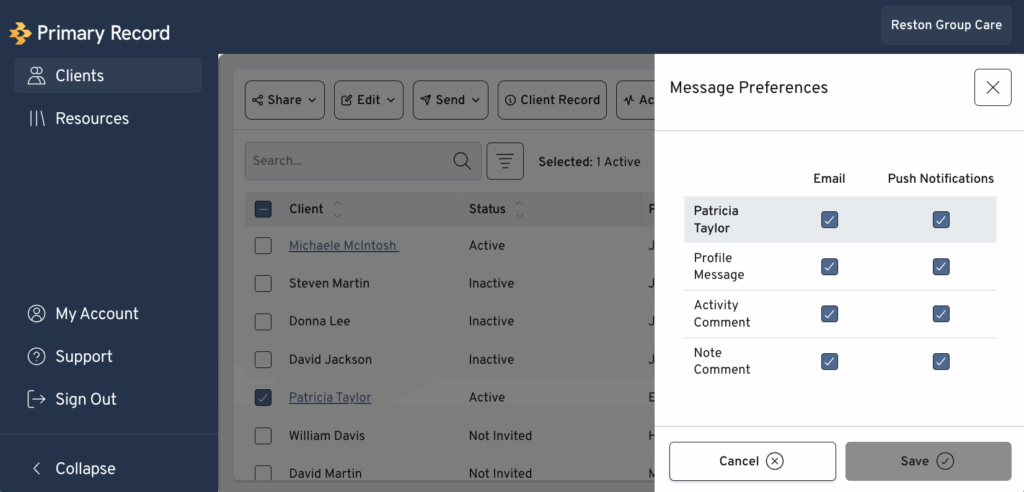
Accessing Message Preferences #
- Sign in to your Primary Record professional account.
- Go to Active Clients.
- Select a client, then choose Message Preferences.
You will see the same interface that exists in the family edition—email toggle, push toggle, and options for comment/message types.
Setting Preferences Individually #
To set preferences for a single client:
- Open the client’s record.
- Select Message Preferences.
- Turn email or push notifications on or off based on your needs.
Changes take effect immediately.
Editing Preferences in Bulk #
If you manage multiple clients:
- Go to Active Clients.
- Select Edit Message Preferences.
- Choose multiple clients to apply the same settings to all selected profiles.
This is useful for adjusting notification levels across service tiers or workload groups.
Understanding Defaults #
- Notification settings are on by default for every professional account.
- If a colleague reports receiving too many alerts for clients they don’t manage, they can change their own preferences at any time.
How This Works with Multi-User Organizations #
Previously, notification settings applied only to a single collaborator profile. Now, every internal user under that profile has their own individual controls. Each team member must set their preferences once, and the system remembers them.